
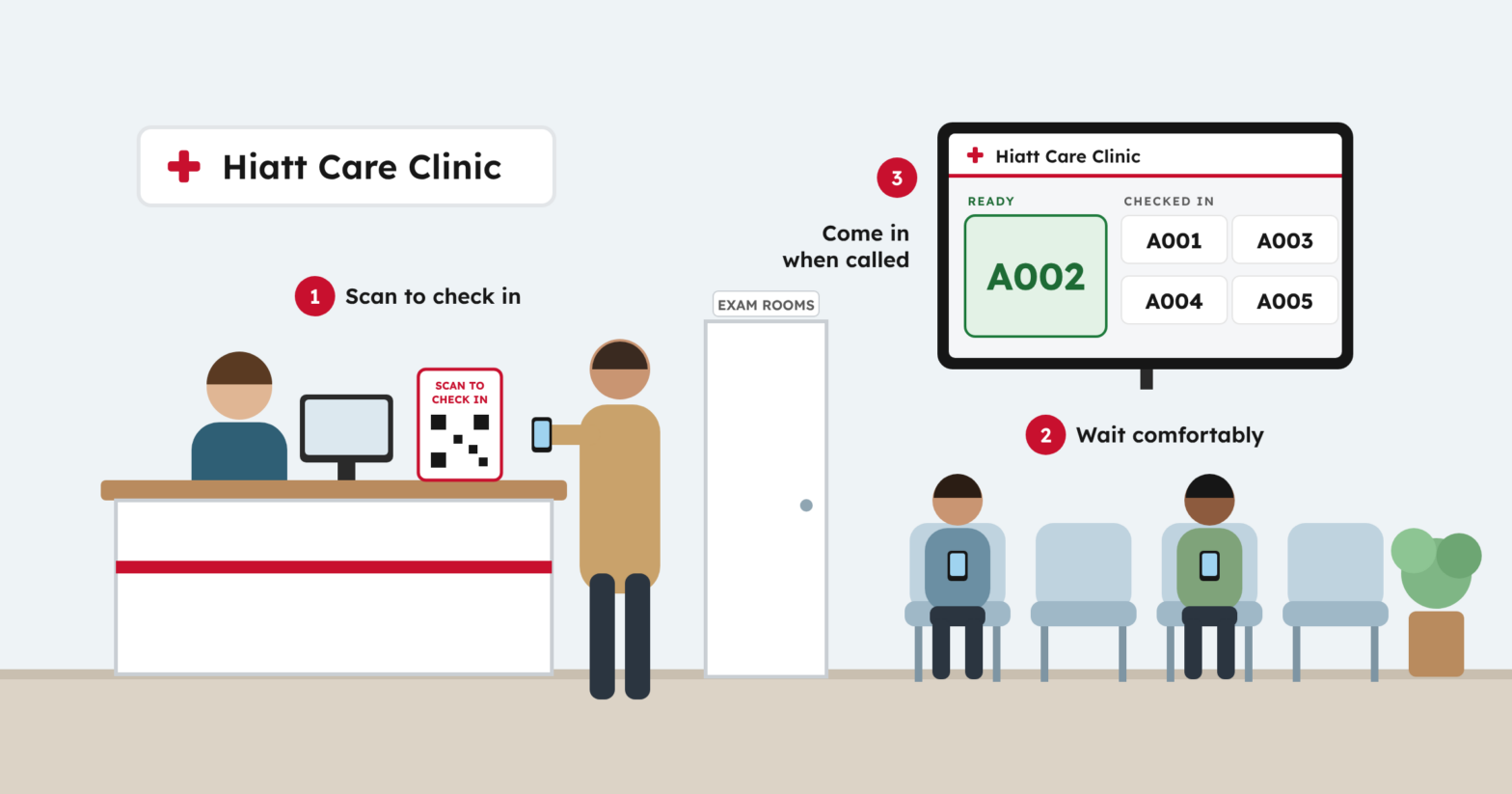
It’s 9:15 on a Monday. Fourteen patients are in your clinic waiting room, there are twelve chairs, and the front desk has heard “how much longer?” six times since 9:00.
When every arriving patient waits in the same room, chairs fill quickly and the front desk becomes the place everyone turns for updates.
IN SHORT
To keep your clinic waiting room calm, give patients a simple way to check in, let your team see who’s waiting and why, and notify patients when you’re ready. Customize the check-in message with your clinic’s instructions, including where patients can wait.
SIMPLE TO START
✓ No patient app
✓ No software to install
✓ Works on its own
Set up your clinic in the dashboard → Print your poster → Go live
In this article:
- How it works
- Optional waiting-room screen, private by design
- What your clinic gets back
- What it costs
- Questions from clinics
How it works
Here’s what a visit looks like, from the moment a patient walks in.
1
Patients scan your poster
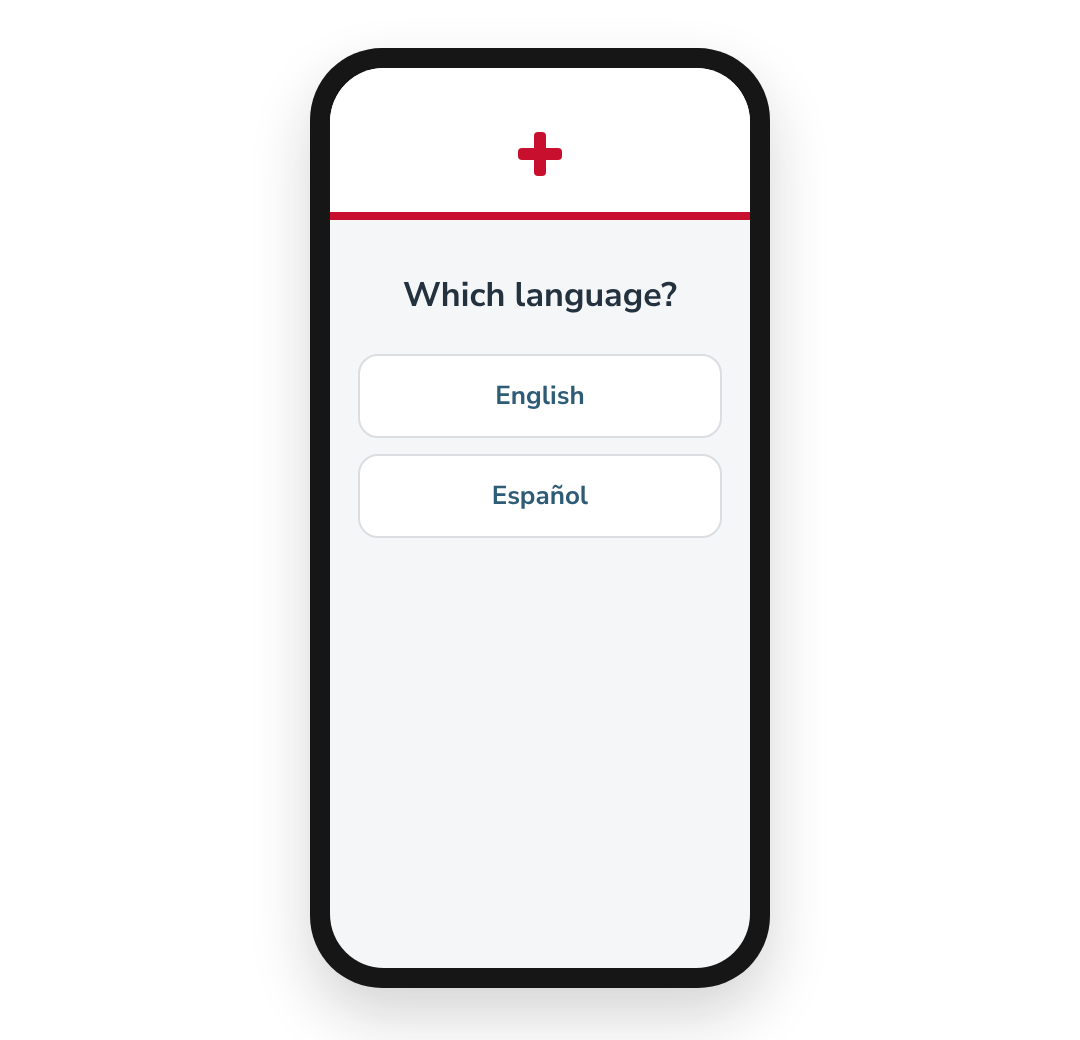
Put your check-in poster at the front desk or entrance. Patients scan it with their phone’s camera and choose English or Español. No app or account needed.
2
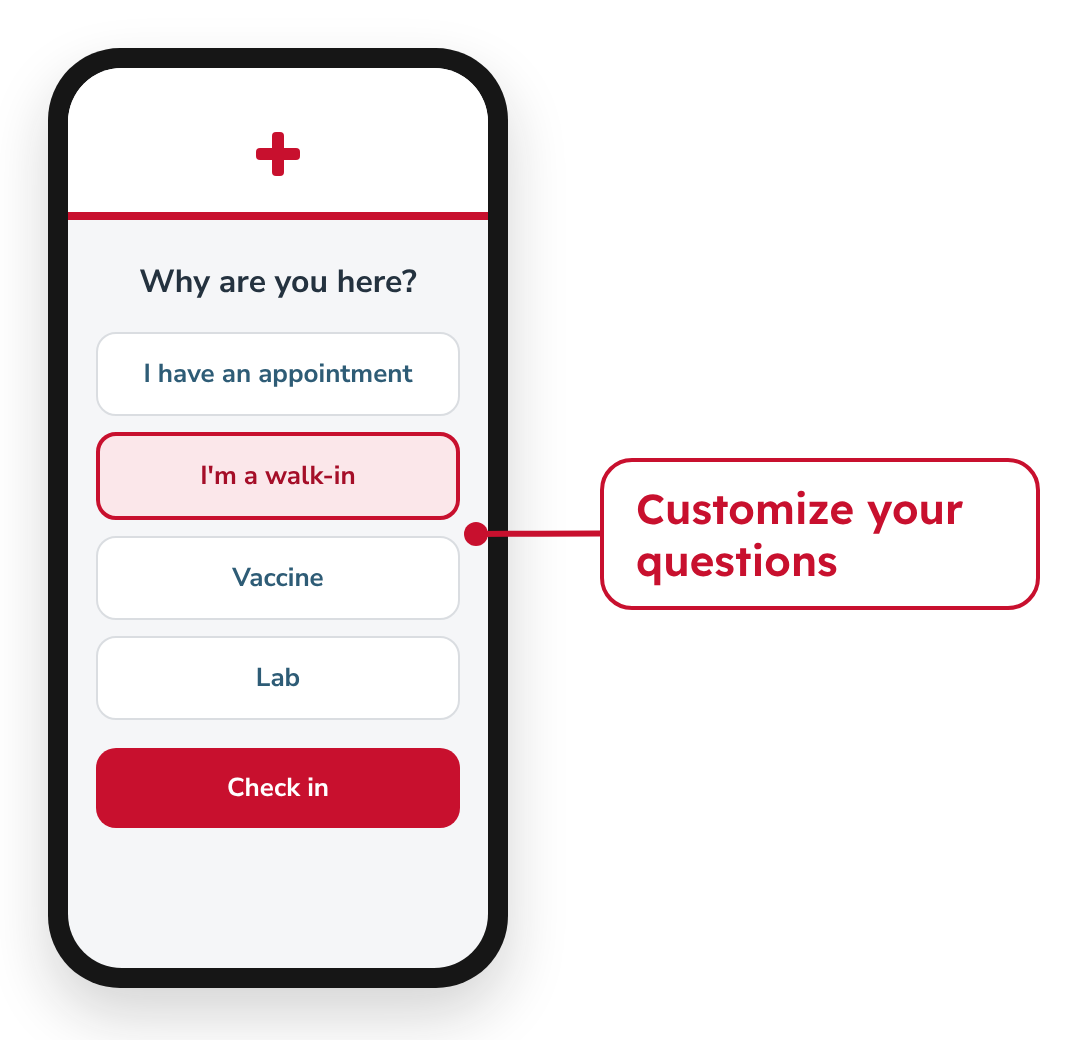
They answer your questions and check in
Your clinic sets the questions and choices, like Appointment, Walk-in, Vaccine, or Lab. Patients tap their answer, then Check in.
3
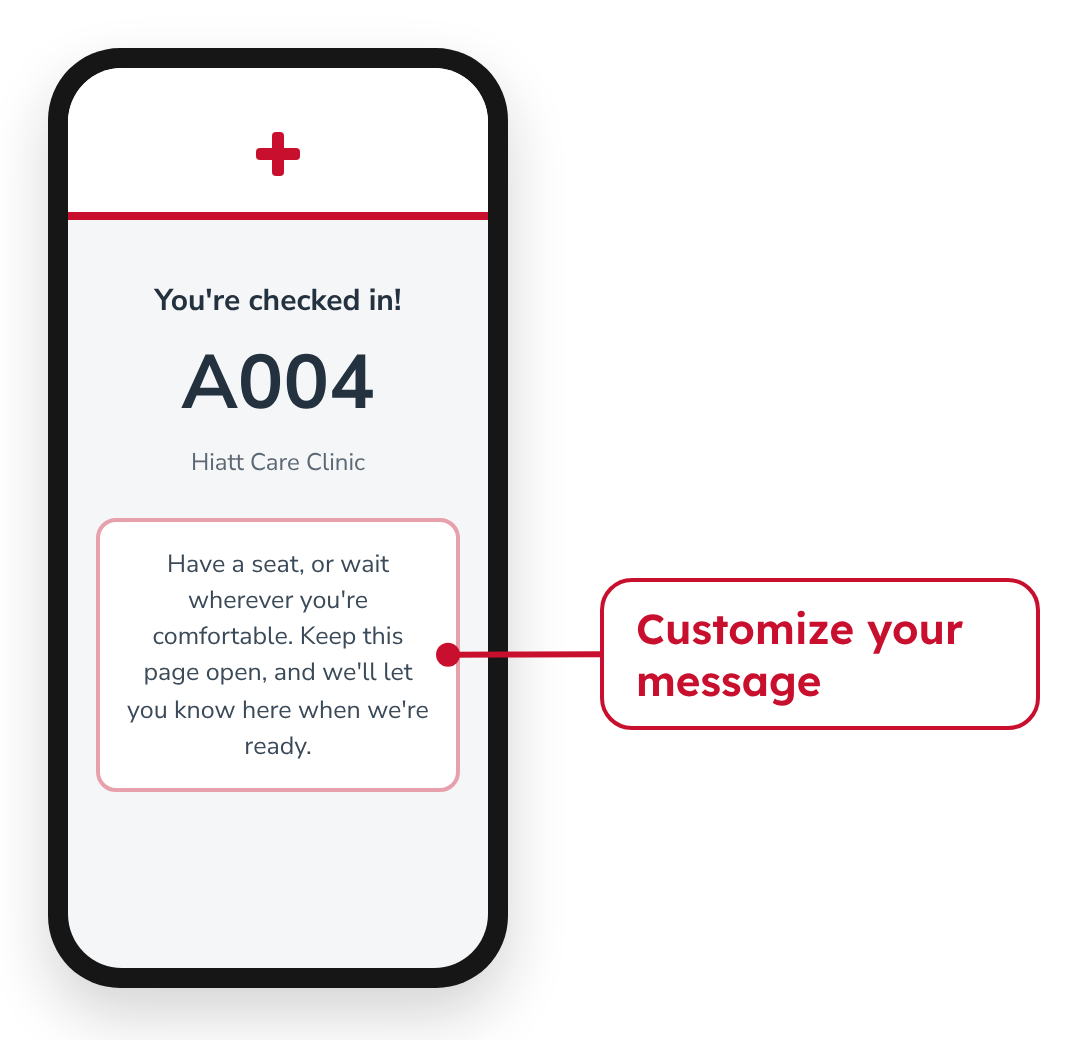
They wait wherever they’re comfortable
Their phone confirms they’re checked in, with your clinic’s message about where to wait or what to have ready. From there, patients are free to take a seat, step outside, or wait wherever they’re most comfortable.
4
Your staff sees who’s waiting and why, at a glance
Every checked-in patient appears in your staff Work Queue, with why they’re here and how long they’ve waited. Anyone on your team can open it on their own computer or tablet, so the lab, the vaccine nurse, and the provider’s team don’t have to ask the front desk who’s arrived.
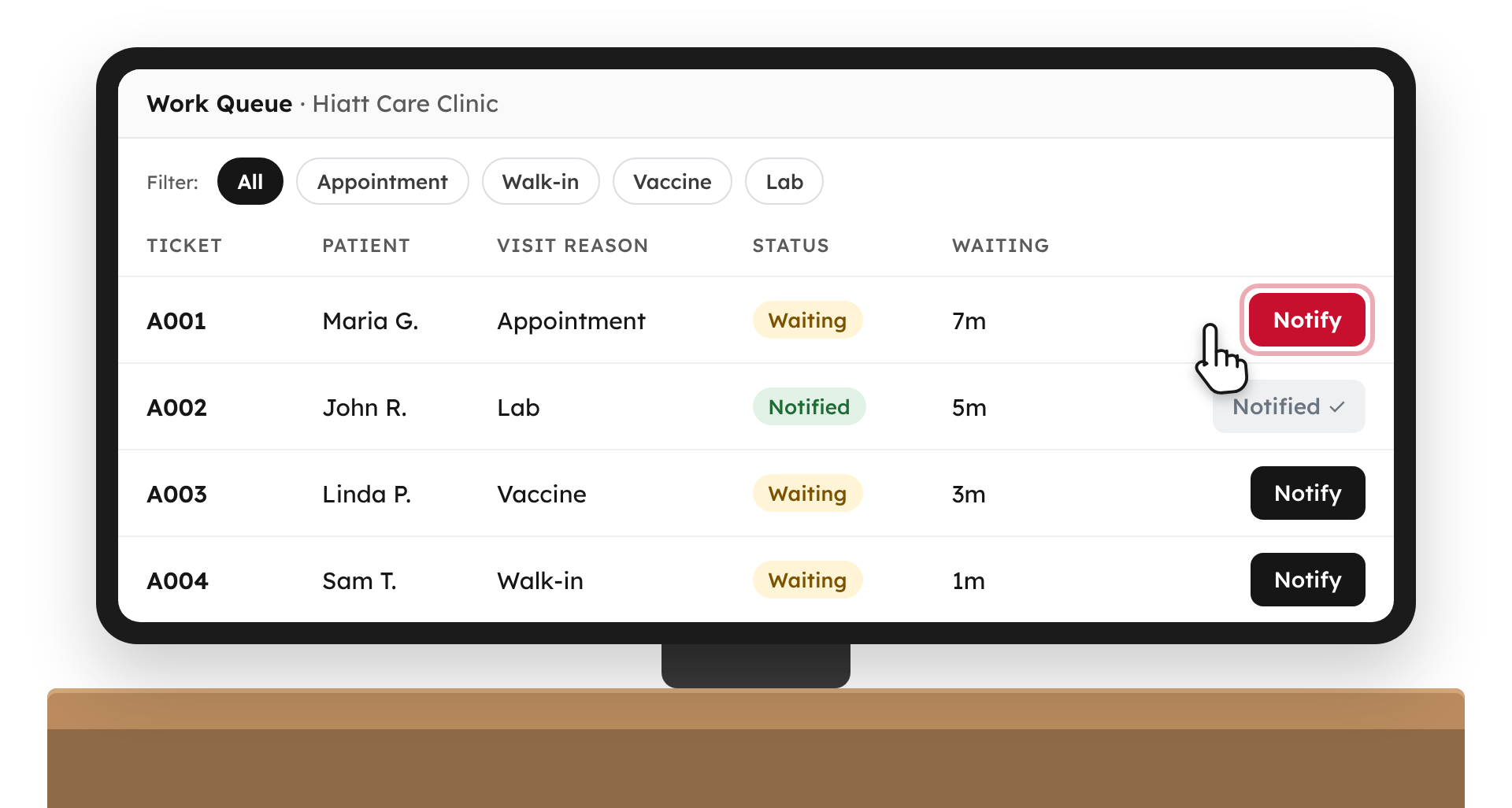
- Appointments, walk-ins, labs, and vaccines on one list
- Filter by visit type, so your lab team sees just their patients
- Once a patient is notified, the Work Queue shows it, so two people don’t call the same patient
- Up to six team members, each with their own PIN
- Add patients without smartphones at the front desk
DisplayRx handles arrival and waiting. Registration, insurance, and forms stay in your current process.
5
You notify them when you’re ready
When the right person on your team is ready, they tap Notify. The patient’s phone shows “We’re ready for you!” and where to go, like the front desk or the lab.
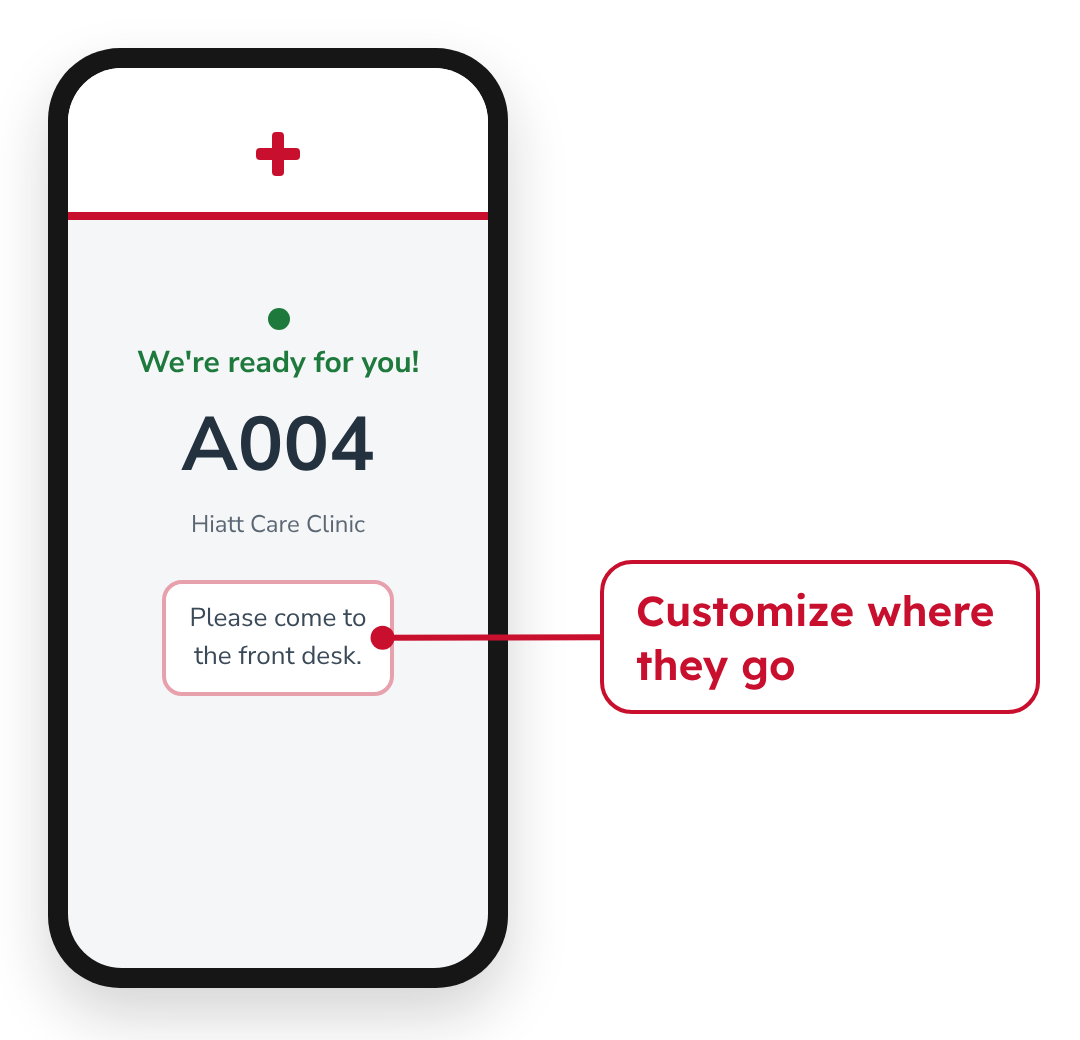
Patients can switch apps or lock their phone. Their check-in page stays in their browser tabs and updates on its own.
Want to make sure no one misses their call? Add text alerts for $19/month, and patients get a text when your team is ready, even if they’ve closed the page.
WHAT YOUR FRONT DESK SAYS
“Scan the code on the counter and you’re checked in. Have a seat, or wait wherever you’re comfortable. Keep that page open, and it will let you know when we’re ready.”
Optional waiting-room screen, private by design
Want a screen in your waiting room? Any TV with a streaming stick works, and up to 2 screens are included. It shows only a ticket number, or initials plus the last four digits of a phone number. You choose.
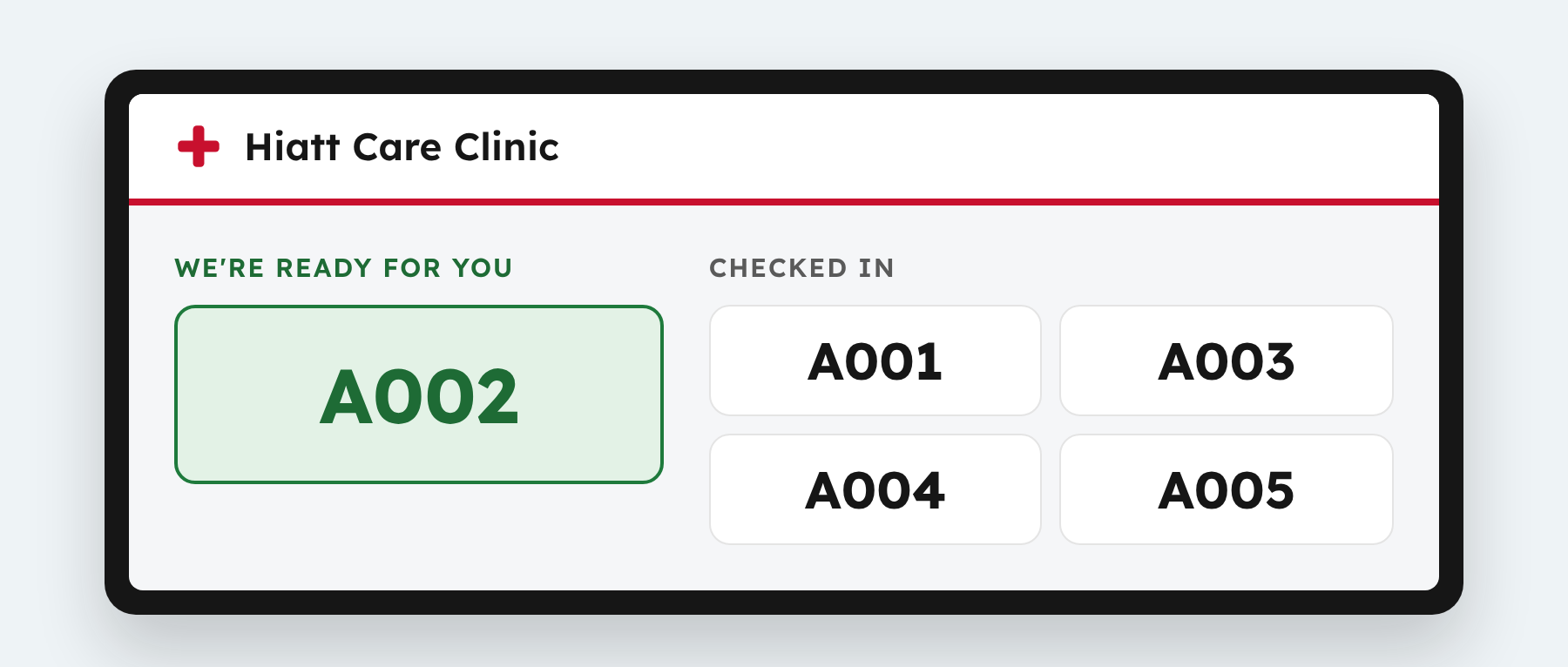
- No names called out. Patients watch for their ticket number instead of hearing their name across the room or seeing it on a clipboard.
- Visit details stay with your staff. Why a patient is here appears only in the staff Work Queue, never on the waiting-room screen.
- Share what’s coming up. Show your own slides alongside the queue: flu shot days, holiday hours, new services.
- Know who helped every patient. Each team member signs in with their own PIN, so you can see who notified each patient and how long they waited.
- BAA on request. A Business Associate Agreement is available on request.
What your clinic gets back
- More flexibility for patients. Give patients clear instructions about where they can wait, whether that’s inside, in their car, or another location your clinic chooses.
- A shared view for staff. Your team can see who’s waiting and what they need without relying on the front desk for every update.
- Clear acknowledgment for patients. Patients can see that they’re checked in and get an update when your team is ready.

TRY THE PATIENT EXPERIENCE (DEMO)
See what your patients will see.
This is a demo clinic. Use a made-up name and birthday.
What it costs
$99 per location / month
Includes one check-in code and Work Queue for one waiting area, up to 6 team members, up to 2 waiting-room screens, custom check-in and ready messages, English and Spanish, branding, and reporting.
Optional text alerts: +$19 per location/month · 1,000 text messages included · 3¢ per additional text
$118/month with text alerts
14 days free. No credit card required. Your trial begins when you go live, and text alerts are included the whole time.
More waiting areas, a bigger team, or an EHR connection? Book a call or call us anytime at (801) 754-1297.
Questions from clinics
Does DisplayRx work alongside our existing EHR and registration process?
Yes. DisplayRx handles arrival and waiting, and it runs on its own in any web browser. Registration, insurance, and forms stay in your current process. No EHR connection is required. Interested in connecting yours? Book a call.
Can appointment patients and walk-ins use the same check-in?
Yes. Patients choose why they’re here, and your team sees it in the Work Queue.
What happens if a patient closes the page?
If they switch apps, the page stays in their browser tabs and keeps updating. If they close it, they’ll need text alerts to get notified.
Does the check-in page make a sound or vibrate?
No. The page updates on screen. For an alert patients won’t miss, add text alerts.
What if a patient scans twice?
They’ll see that they’re already checked in, so duplicates don’t pile up in your Work Queue.
What about patients without smartphones?
Your front desk can add them to the Work Queue and handle them the way you do today.
What appears on the waiting-room display?
Only a ticket number, or initials plus the last four digits of a phone number. You choose. Names and visit details never appear.
What are the BAA and security-review steps?
A Business Associate Agreement is available on request. For your security review, contact our team. We’re happy to complete it.
What equipment and setup are required?
Your staff’s existing computers or tablets and a printed QR code. For the optional waiting-room screen, any TV with a streaming stick. Follow the guided setup, and your clinic can be ready the same day.
When does the trial start, and what happens when it ends?
When you go live, not when you sign up. Text alerts are on for all 14 days. When the trial ends, choose your plan. Text alerts stay selected unless you uncheck them.
Give your team a clear view. Give patients a more comfortable wait.
Patients check in from their phone and see your clinic’s instructions. Your team sees who’s waiting and why, then notifies them when you’re ready to serve them.
Start my free trial Book a call
14 days free, starting when you go live · No credit card required · Questions? Call (801) 754-1297